Pequeno menino
O exemplo foi criado com o uso do algoritmo anterior de Magnifier.
O autor deste tutorial é Gordon Sisson.
Em seu exemplo Gordon Sisson demonstrou mais um aspecto do uso de AKVIS Magnifier isto é a habilidade não só de mudar as dimensões da imagem mas também melhorar em sua qualidade. Nas palavras do autor ele precisa freqüentemente aumentar a resolução de gráficos baixados da internet ou coleção de clipart. Estes gráficos são 72 dpi que não são aceitáveis para imprimir, assim resolução deveria ser aumentada para 300 dpi.
Para comparar Adobe Photoshop e AKVIS Magnifier (rapidez e qualidade), Gordon Sisson decidiu aumentar uma fotografia de um pequeno menino. Como todo o mundo sabe, enquanto uma criança cresce é um processo muito envolvente. Deixe só o menino é realmente pequeno - a imagem original só é de 2,38 polegadas alto! As reivindicações do autor, porém: esta tarefa pode ser feita em poucos minutos.
Aqui está a magia do AKVIS Magnifier:
- Passo 1. Iniciar AKVIS Magnifier e abrir a tif. imagem (arraste na janela do programa Magnifier).
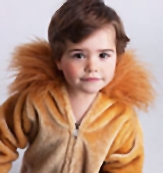
Imagem original (pequeno menino) - Passo 2. Aumente a Resolução para 300 dpi. Isto reduz o tamanho para 0,57 polegadas alto.
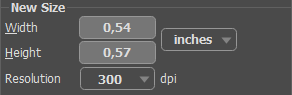
Mudança de resolução de 72 para 300 dpiNo painel Novo tamanho especifique o tamanho final que você quer (como percentual do tamanho reduzido do gráfico original - neste exemplo 750%).
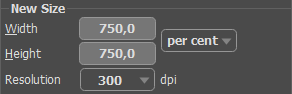
Novo tamanho - Passo 3. Considere os Parâmetros para melhorar a qualidade final do gráfico. Alguma experimentação pode ser requerida com os ajustes do deslizador para alcançar a melhor qualidade. A este nível de amplificação, o sistema permite configurações ótimas para Nitidez de contornos. Simplificação é reduzida a zero, parâmetro de Suavidade de contornos é esquerdo inalterado, a caixa de verificação Mascara de nitidez está habilitada com os parâmetros de grupo Intensidade = 10, Raio = 1.
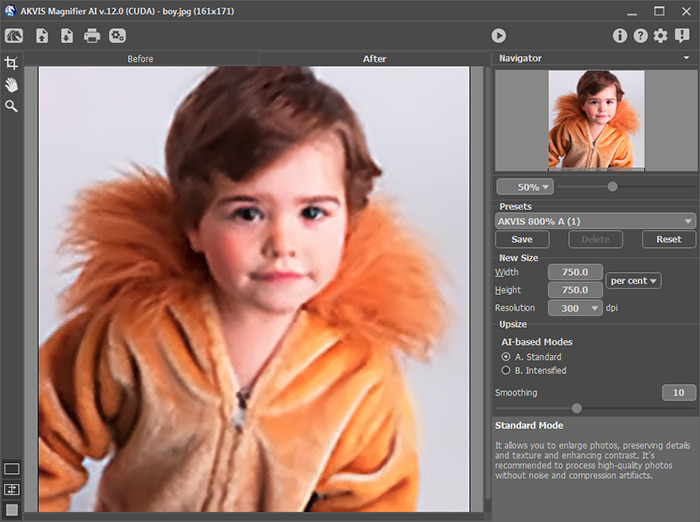
Janela do programa AKVIS Magnifier - Passo 4. Clique no botão
 para processar a imagem com as configurações ajustadas. A altura da imagem é agora 4,28 polegadas - o menino se tornou duas vezes mais alto e a resolução de imagem sofreu um aumento quadruplicado.
Salve a imagem final - agora pode ser impresso.
Este método produz um gráfico de qualidade mais alta que o procedimento laborioso no Photoshop, em aproximadamente um quinto do tempo. O mesmo procedimento pode ser aplicado como bem a outras imagens.
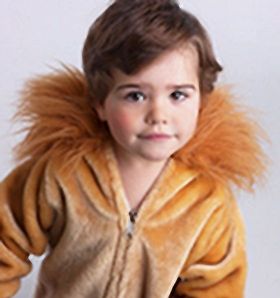 |
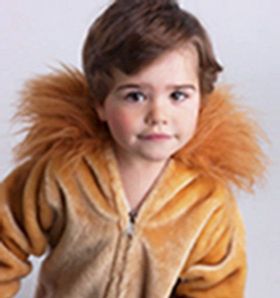 |
| O resultado de AKVIS Magnifier | O mesmo gráfico aumentado no Photoshop |
Magnifier AI v. 13.0 - Teste gratuito 10 dias
